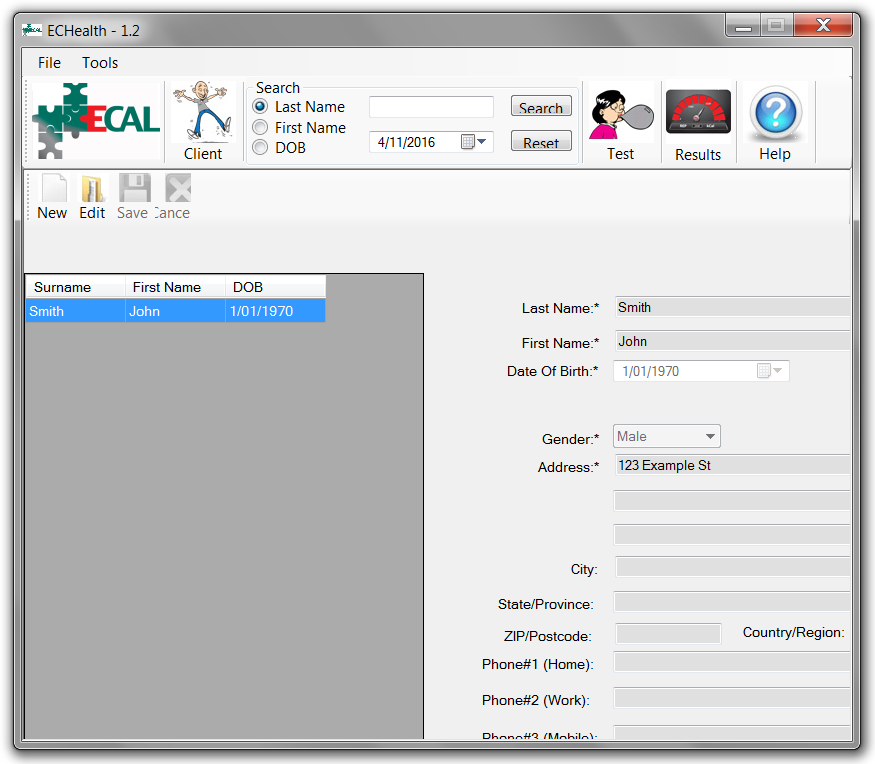
ECHealth window contents are overflowing the window container.
Note: This should only be an issue when operating ECHealth on a PC running Windows 7, if you are experiencing the issue on Windows 8.1 or 10 please submit a support ticket.
Problem
ECHealth contents do not fit inside the containing window, as seen in the example below.
Cause
ECHealth is incompatible with the display scaling feature in Windows 7. If the display scaling is set to any value other than 100%, ECHealth will be affected.
Note: Windows 8 changed how display scaling affects applications, meaning the issue should not be present in Windows 8 and above.
Solution
Set the display scale to 100%.
Problem
ECHealth contents do not fit inside the containing window, as seen in the example below.
Cause
ECHealth is incompatible with the display scaling feature in Windows 7. If the display scaling is set to any value other than 100%, ECHealth will be affected.
Note: Windows 8 changed how display scaling affects applications, meaning the issue should not be present in Windows 8 and above.
Solution
Set the display scale to 100%.
- Open the Control Panel and go to Appearance and Personalization → Display.
- Select the option Smaller - 100% (default) and then click Apply.
- Windows will present a dialog prompting you to log off in order for the setting to take effect. If you need to save any files or close applications select Log off later, otherwise select Log off now.
- Log back in to your Windows account and reopen ECHealth. The window should now be displaying correctly.
Related Articles
Updating ECHealth
This article assumes that an older version of ECHealth is currently installed on the PC. If this is a first time install please refer to the following article Installing ECHealth. Requirements The latest version of ECHealth (download here - Build ...Installing ECHealth
The instructions outlined below are for first time installs only. If you are updating ECHealth to a newer version please refer to the article Updating ECHealth. Requirements Latest version of ECHealth (download here) Windows PC meeting the minimum ...Uninstalling ECHealth
Requirements PC with ECHealth installed Administrative rights on the PC Instructions It is recommended that you back up the contents of the folder C:\Lionstar before continuing. To do so, simply copy the files 'ecal.dat' and 'ecal.lic' to another ...How to manually install the ECAL driver
While under most circumstances Windows will automatically and silently install the necessary drivers for ECAL when it is first connected, there are some situations where manual installation of the drivers will be required. Such situations occur if: ...Where can I find the ECHealth Version Number?
To find the Version Number of the current ECHealth installed on your PC click on the Help button in the top right of the ECHealth window. The Version Number can be seen in the About page that opens, e.g. in the image below the Version Number can be ...